This guide will walk you through the registration process for a new Freedx account on both the web and the mobile app.
Web
Step 1: Access the Registration Form
From the Freedx homepage, locate and click the Register button. This action will take you directly to the registration form.
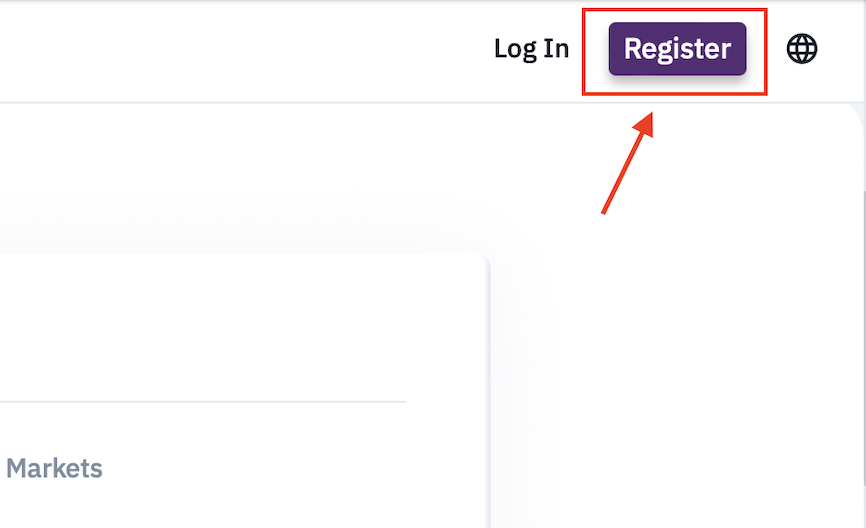
Step 2: Fill in Your Details and Set Your Password-
Complete all required fields in the registration form.
Important Password Reminders: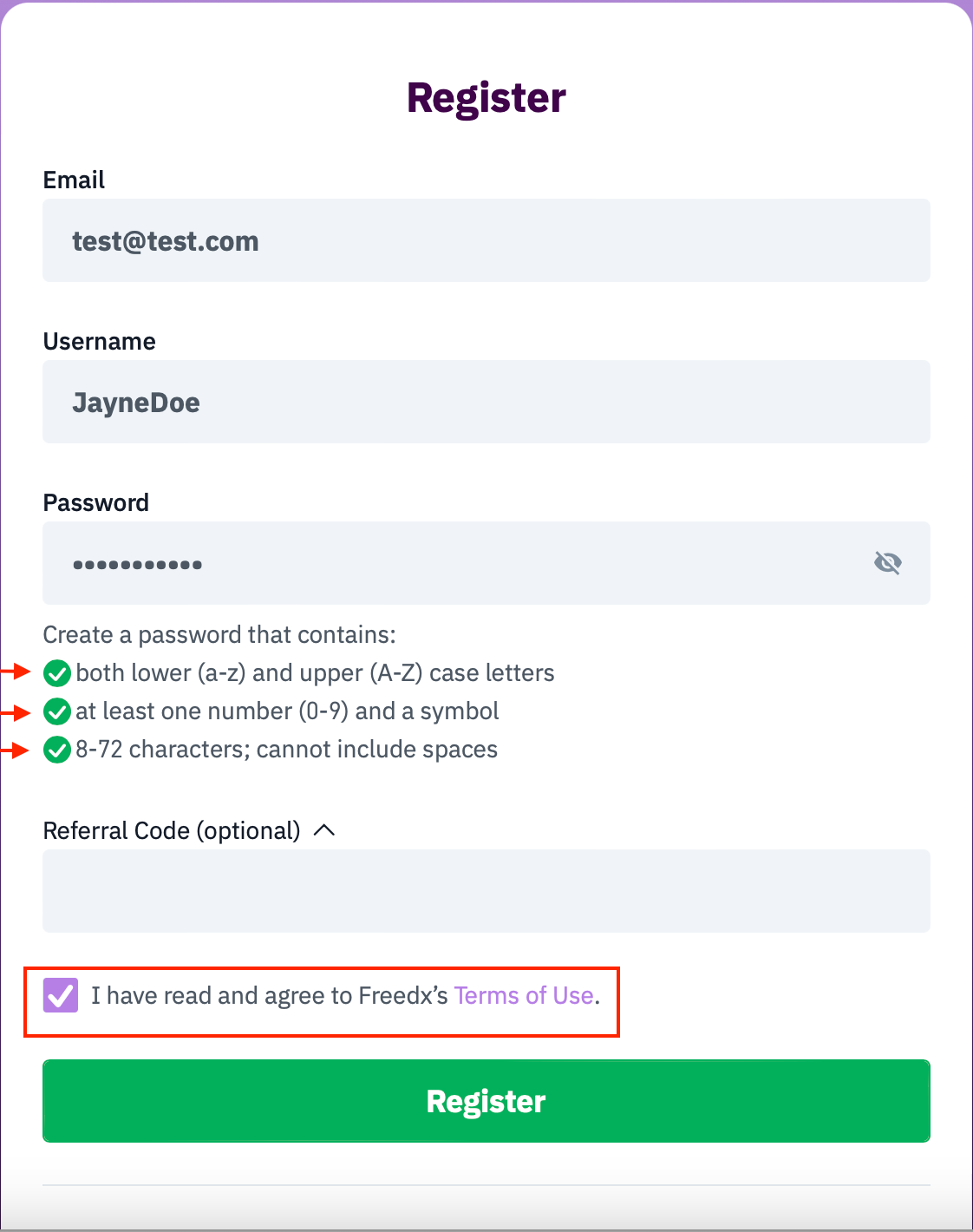
Your password must be at least 8 characters long.
It needs to include a mix of both lowercase and uppercase letters.
At least one number (0-9) and a special character must be included.
Passwords are case-sensitive.
Step 3: Enter a Referrer Code (Optional)
If you have a referrer code, click on the "Referral" section within the form.
Enter your referrer code in the designated field(s).
Step 4: Agree to the Terms of UseCarefully read the Freedx Terms of Use.
Once you have reviewed them, click I agree to the Terms of Use to confirm your acceptance.
Step 5: Submit Your Registration and Verify Your Email
After filling out all the necessary information and agreeing to the terms, tap Register button.
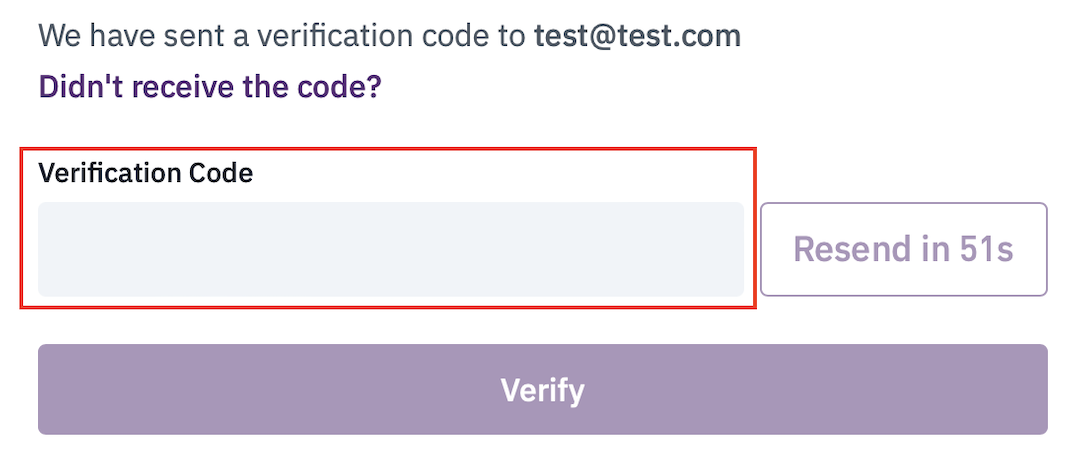
Finally, check your email inbox for a verification code. Fill in the Verification Code box, tap Verify.
Mobile
Step 1: Access the Registration Form
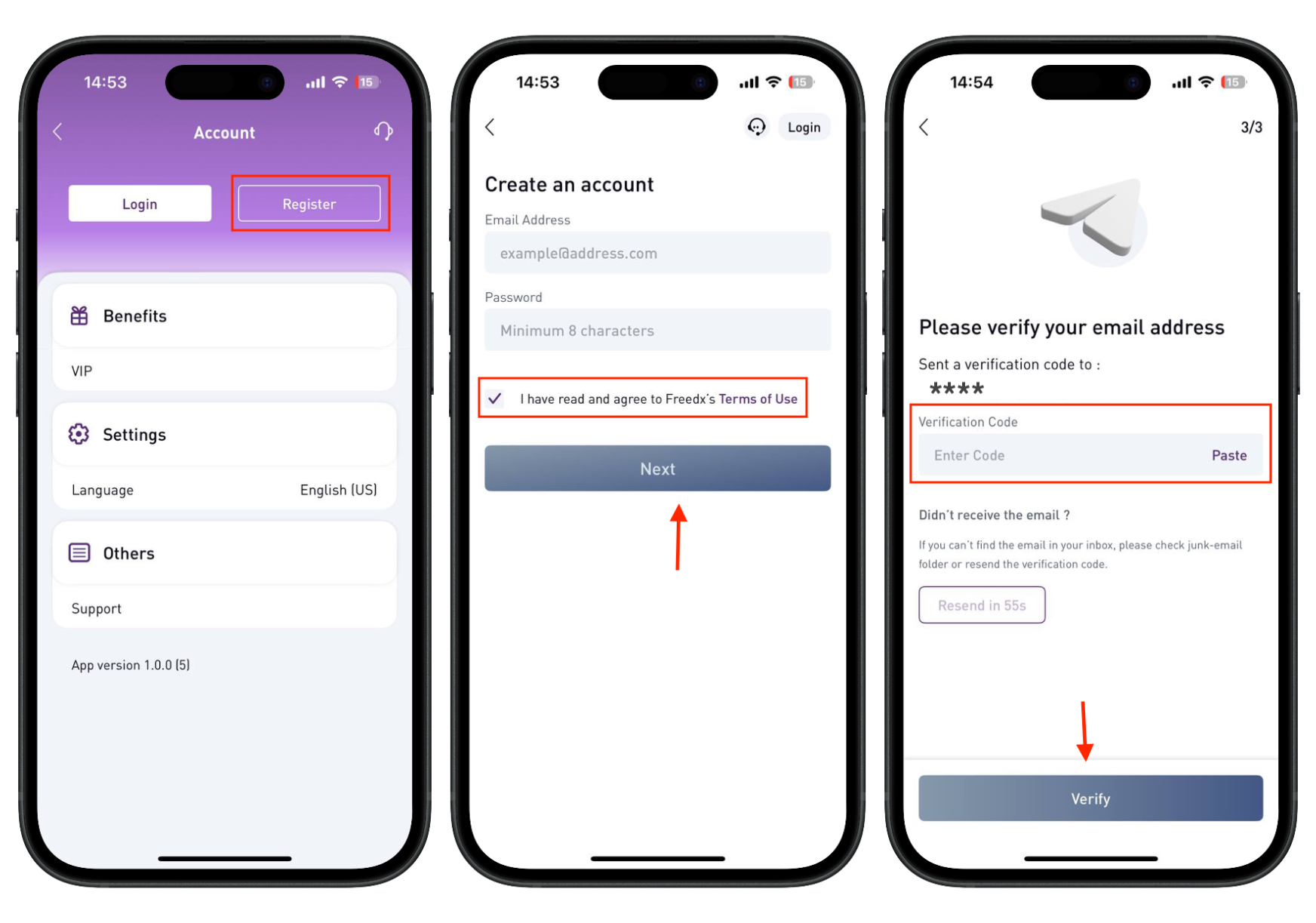
Run the app and from the homepage, locate and click the "Register" button. This action will take you directly to the registration form.
Complete all required fields in the registration form.
Important Password Reminders
Your password must be at least 8 characters long.
It needs to include a mix of both lowercase and uppercase letters.
At least one number (0-9) and a special character must be included.
Passwords are case-sensitive
-
Agree to the Terms of Use
Carefully read the Freedx Terms of Use.
Once you have reviewed them, click "I agree to the Terms of Use" to confirm your acceptance.
-
Submit Your Registration and Verify Your Email
After filling out all the necessary information and agreeing to the terms, tap Register button.
Finally, check your email inbox for a verification code. Fill in the Verification Code box, tap Verify.
Was this article helpful?
That’s Great!
Thank you for your feedback
Sorry! We couldn't be helpful
Thank you for your feedback
Feedback sent
We appreciate your effort and will try to fix the article